
Help center · Money
Set up payouts with Stripe (one time)
Connect your Stripe account so gratitude can land in your bank. Watch the quick walkthrough, then follow the step-by-step. Bank of America is shown as an example — your bank's screens may look slightly different.
Full video walkthrough · made with Trails
Checklist
Before you start
Gather these so you are not stuck mid-flow.
- A Google account for Haylo sign-in
- Your phone nearby for SMS verification codes
- Online banking login for your payout bank (this guide uses Bank of America)
- Your legal first and last name as Stripe requests
Stripe form tips
Recommended answers in Stripe
These choices match how most members use HayloFriend — gratitude gifts, not a storefront.
| Field | What to choose |
|---|---|
| Business type | Individual (recommended for most members) |
| Website | If you do not have a website, choose “I don't have a website” and continue. |
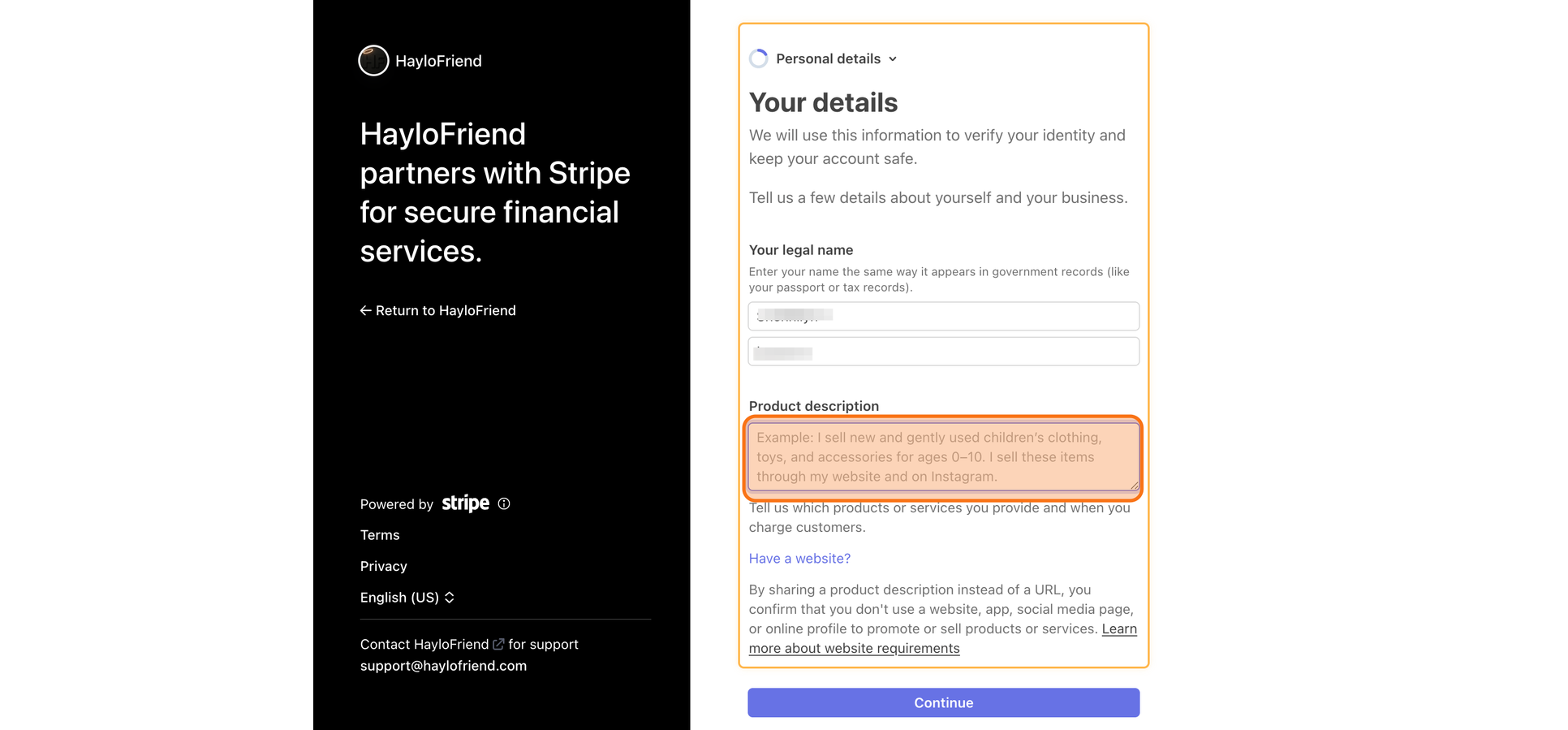
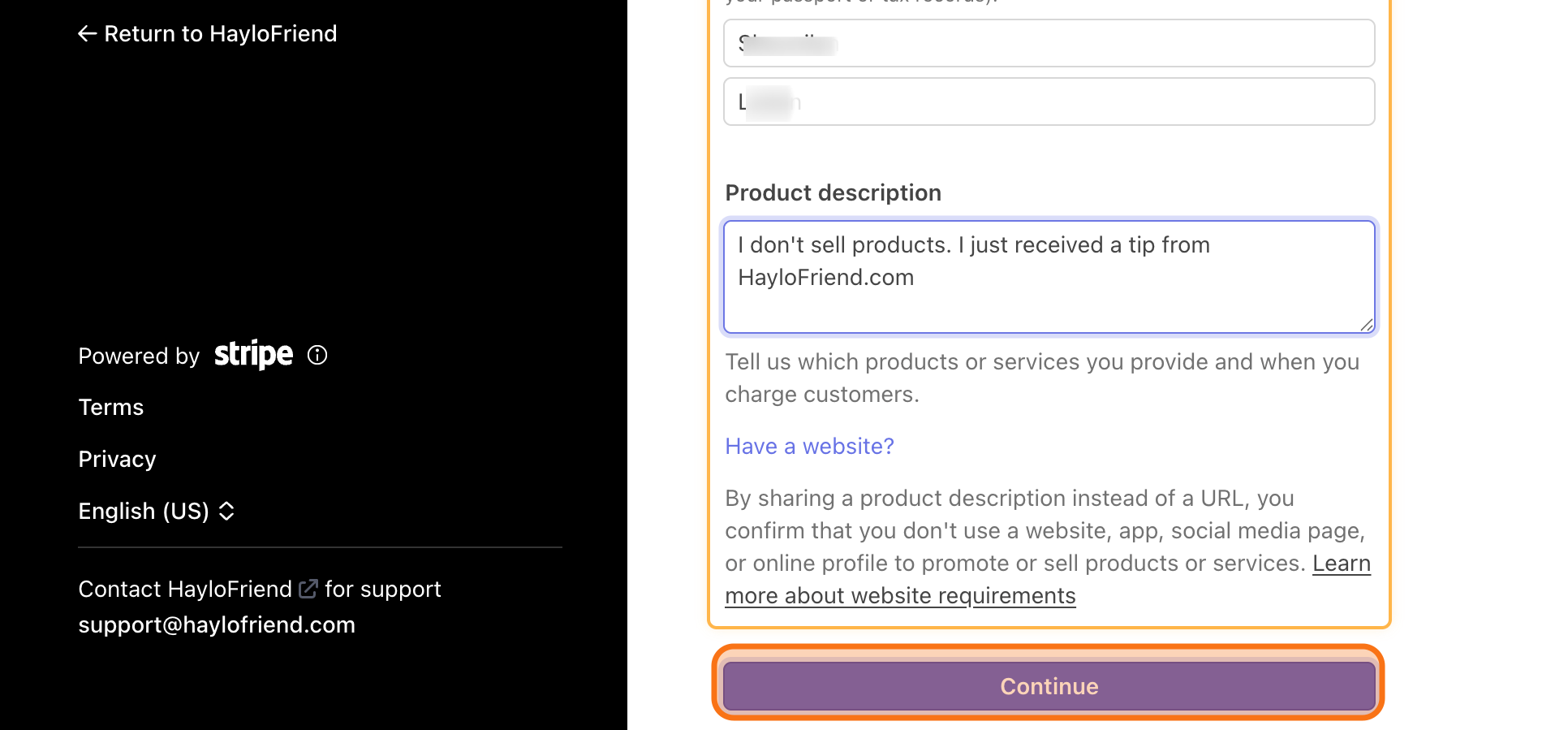
| What you sell | Nothing — you received a tip through HayloFriend as a gift, not a product or service. |
Steps
Part 1 — Start in HayloFriend
- 1
Open Your impact
Go to haylofriend.com/your-impact.
- 2
Watch for the setup card
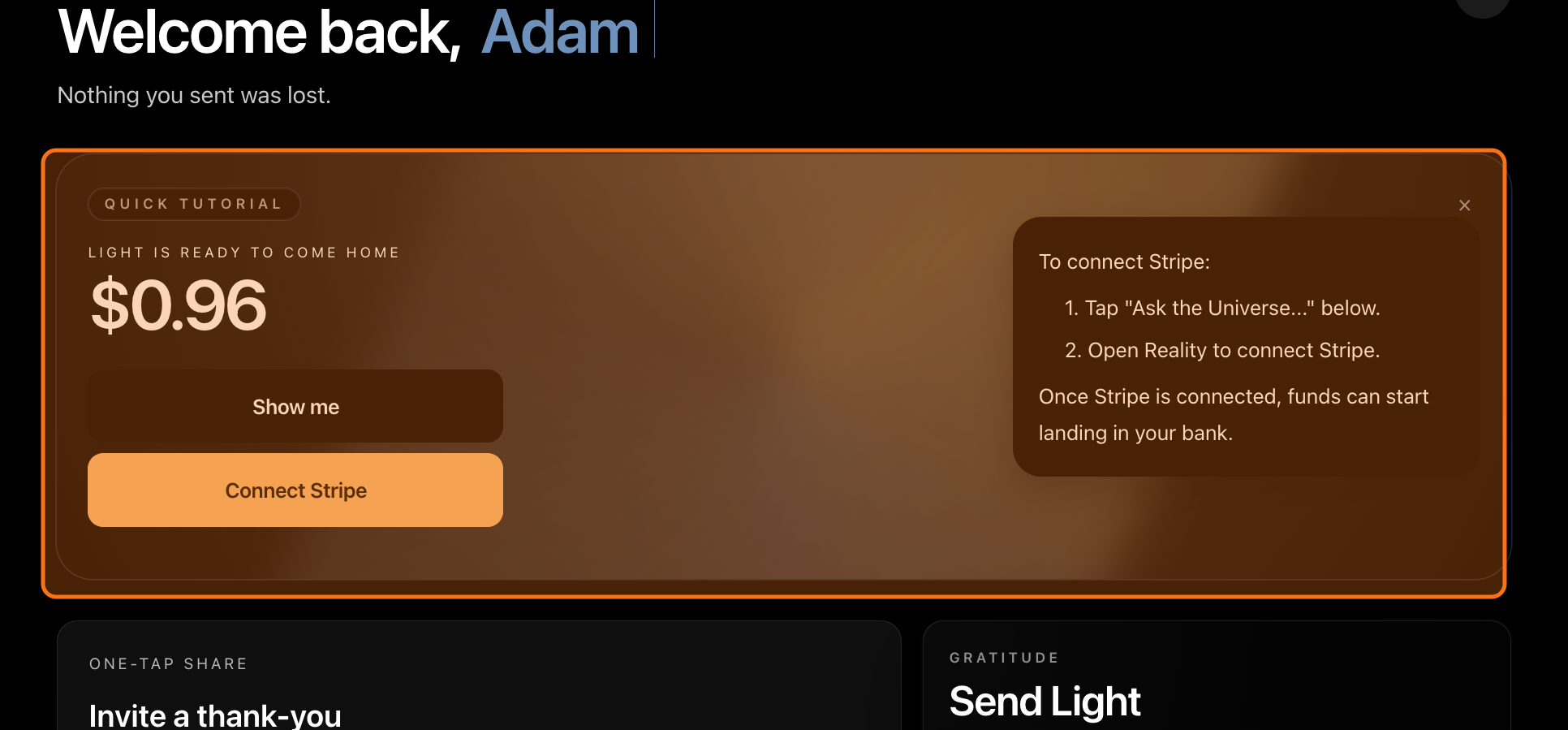
If you have gratitude waiting to be received, Haylo automatically shows a tutorial card to help you finish setup and receive your funds securely.
- 3
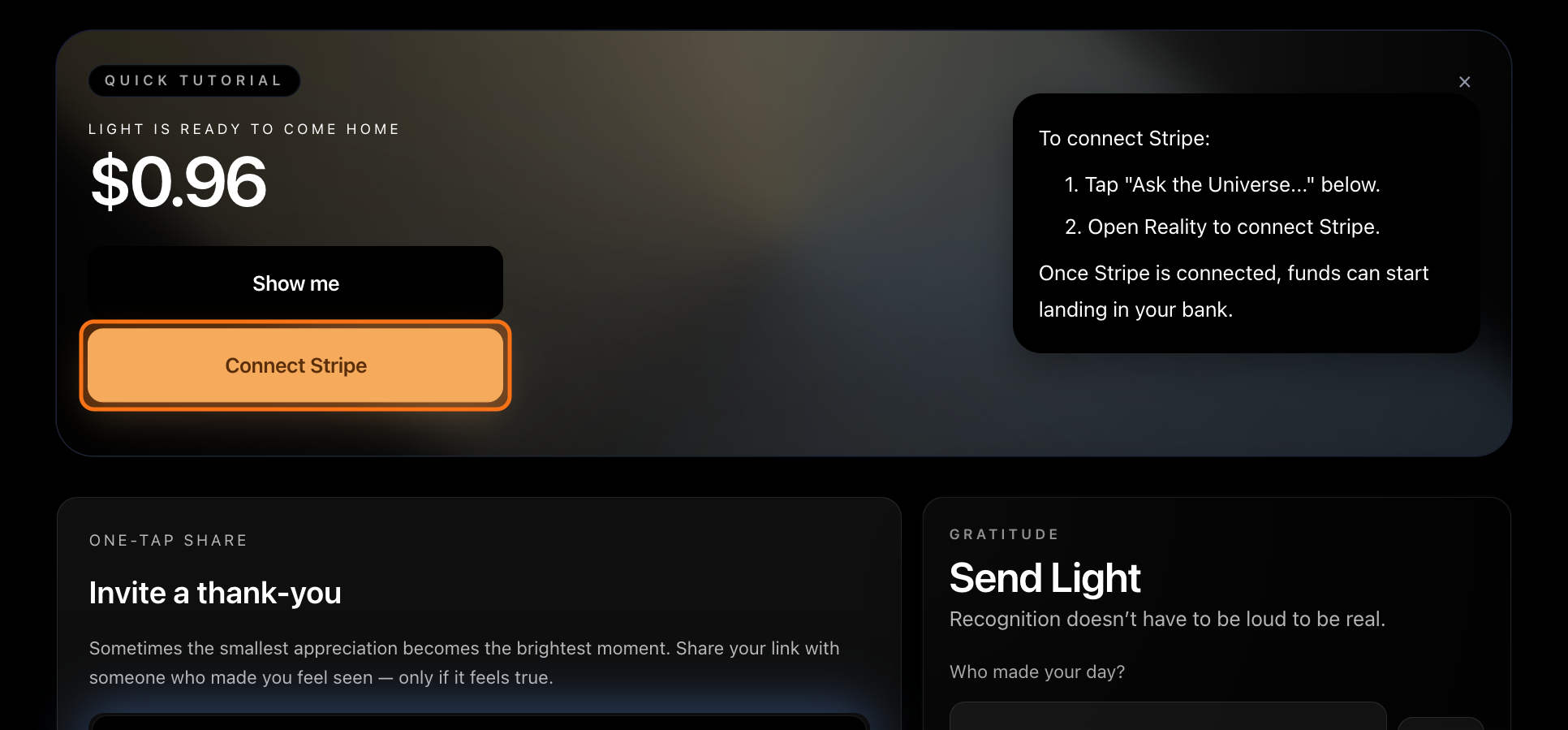
Tap Connect Stripe
On the card, tap Connect Stripe to begin.
Steps
Part 2 — Verify your identity with Stripe
- 4
Enter your email
You're handed to Stripe — Haylo's payment partner — to finish securely. Enter your email and continue.
You're now on Stripe's encrypted onboarding page. Haylo never sees your bank login or full banking details.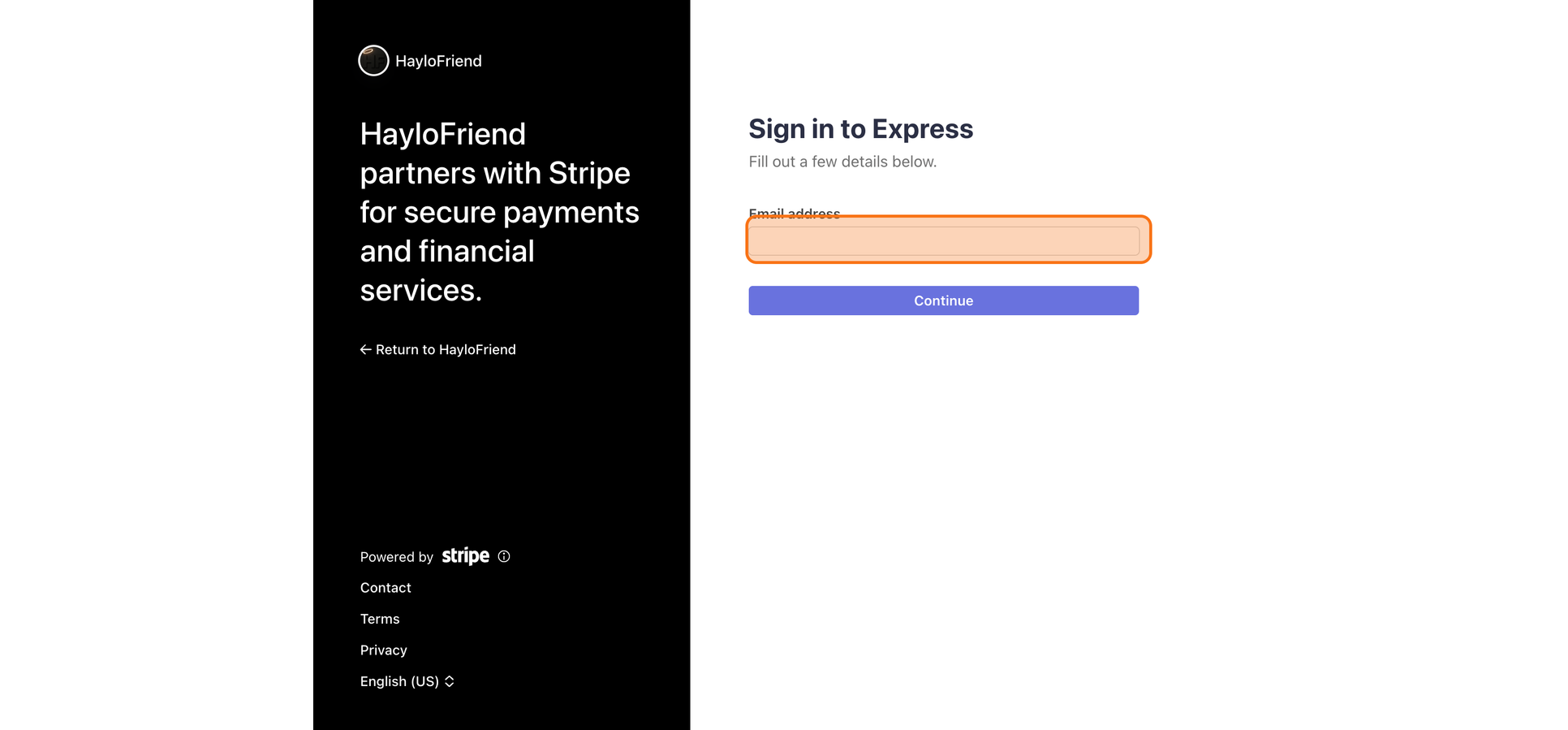
- 5
Add your phone, then submit
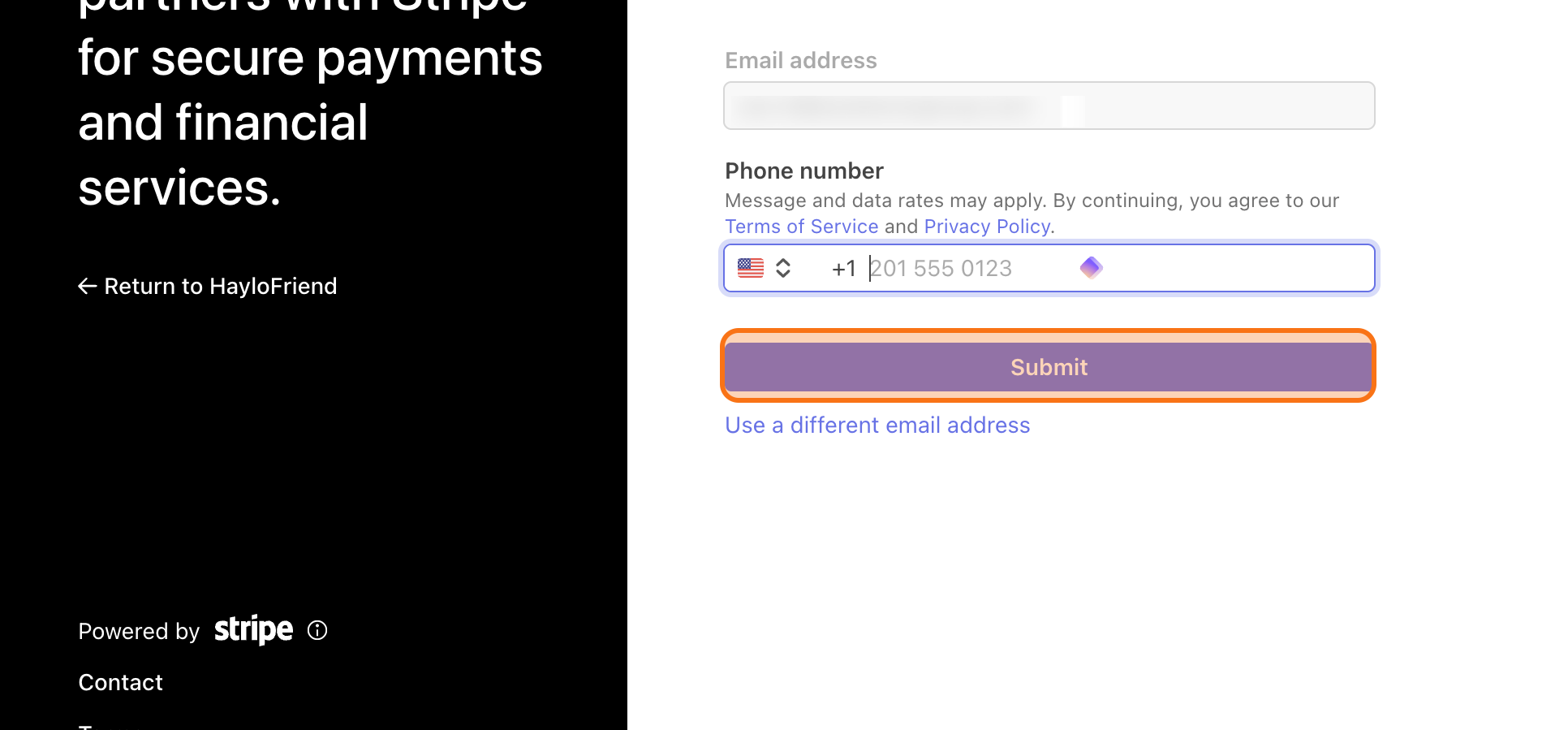
Enter your phone details and submit so Stripe can text you a verification code.
- 6
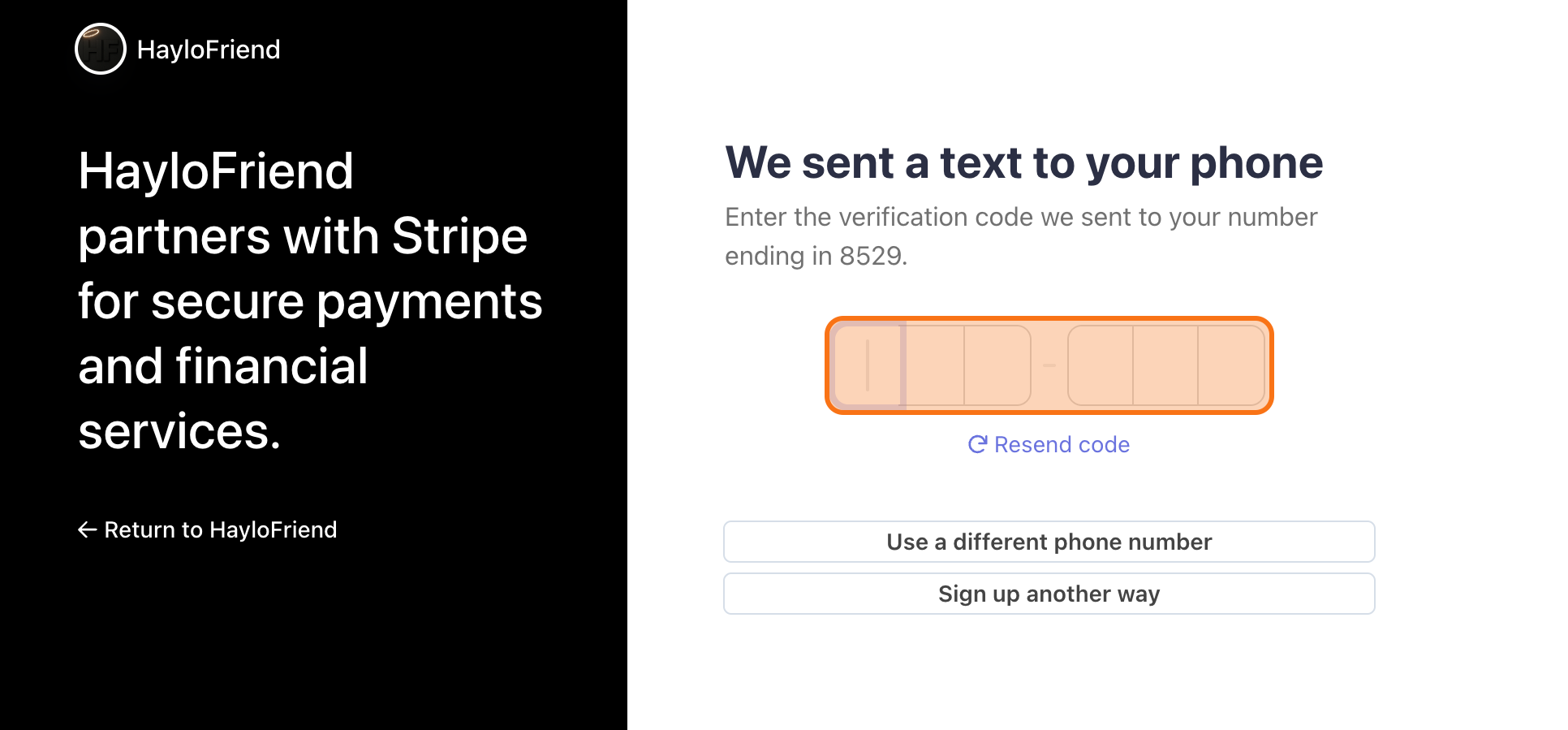
Enter the 6-digit code
Stripe texts you a six-digit code — enter it here.
- 7
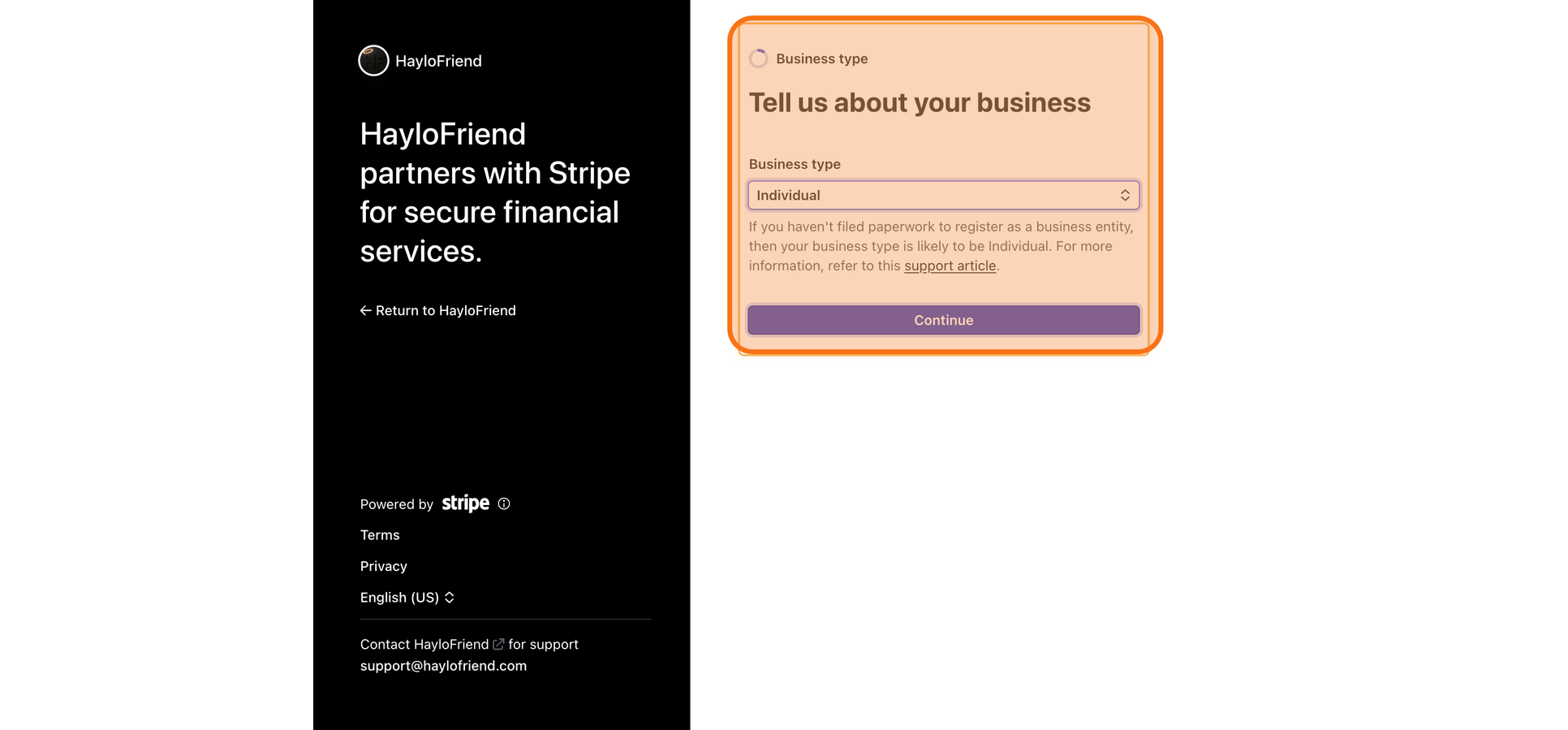
Choose Individual
Stripe asks for a business type. Receiving as a person with no LLC or registered business? Choose Individual — it's usually selected by default.
- 8
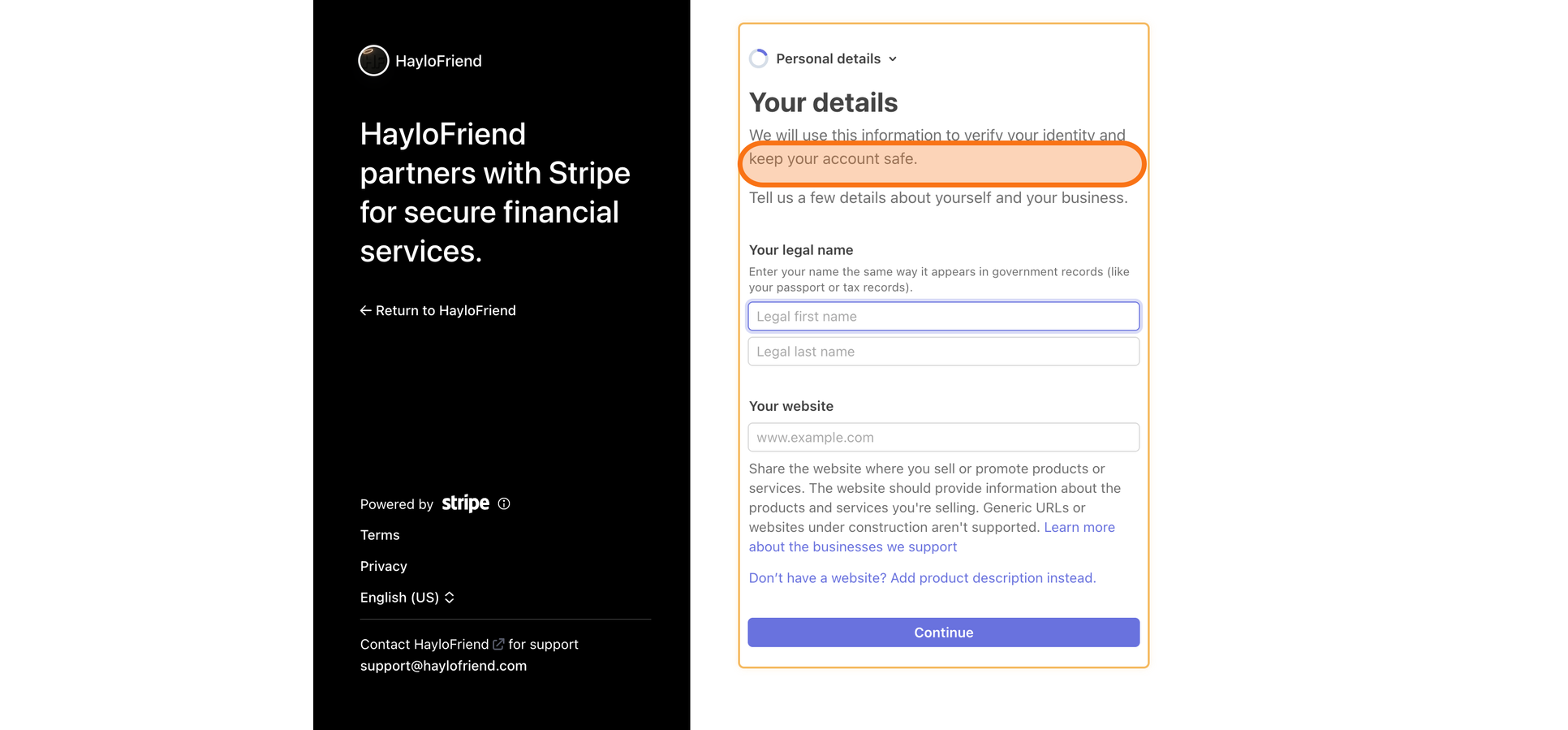
Enter your legal name
Enter your legal full name exactly as it appears on your government-issued ID. Stripe uses this to verify your identity and keep payments secure.
- 9
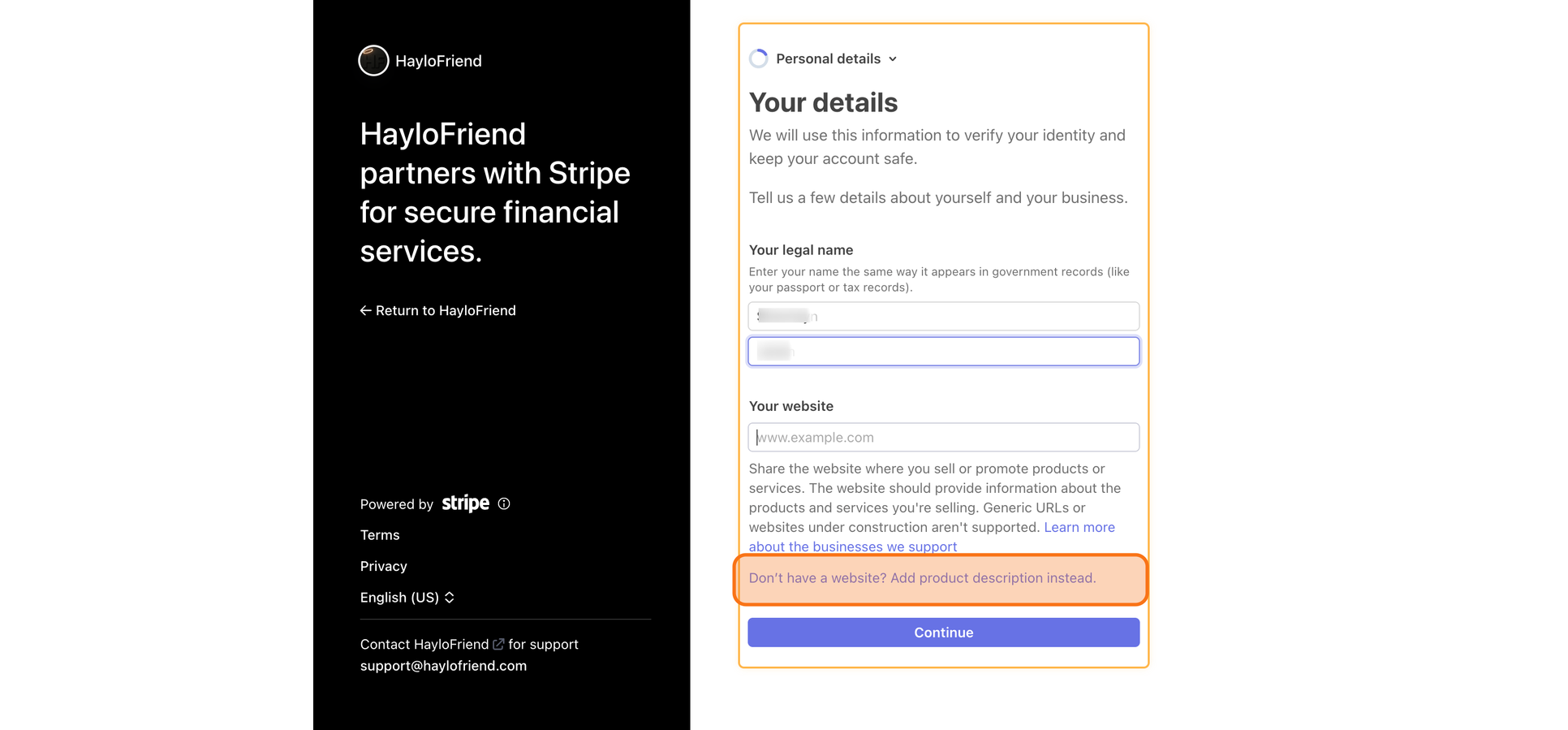
No website? That's fine
Many members don't have a website. If Stripe asks, select “I don't have a website” and continue.
- 10
Say what Haylo is
Haylo is a gifting and gratitude platform. If Stripe asks what you sell, indicate that you don't sell products or services — you received a tip through HayloFriend.
- 11
Continue
Click continue.
Steps
Part 3 — Link your bank for payouts
- 12
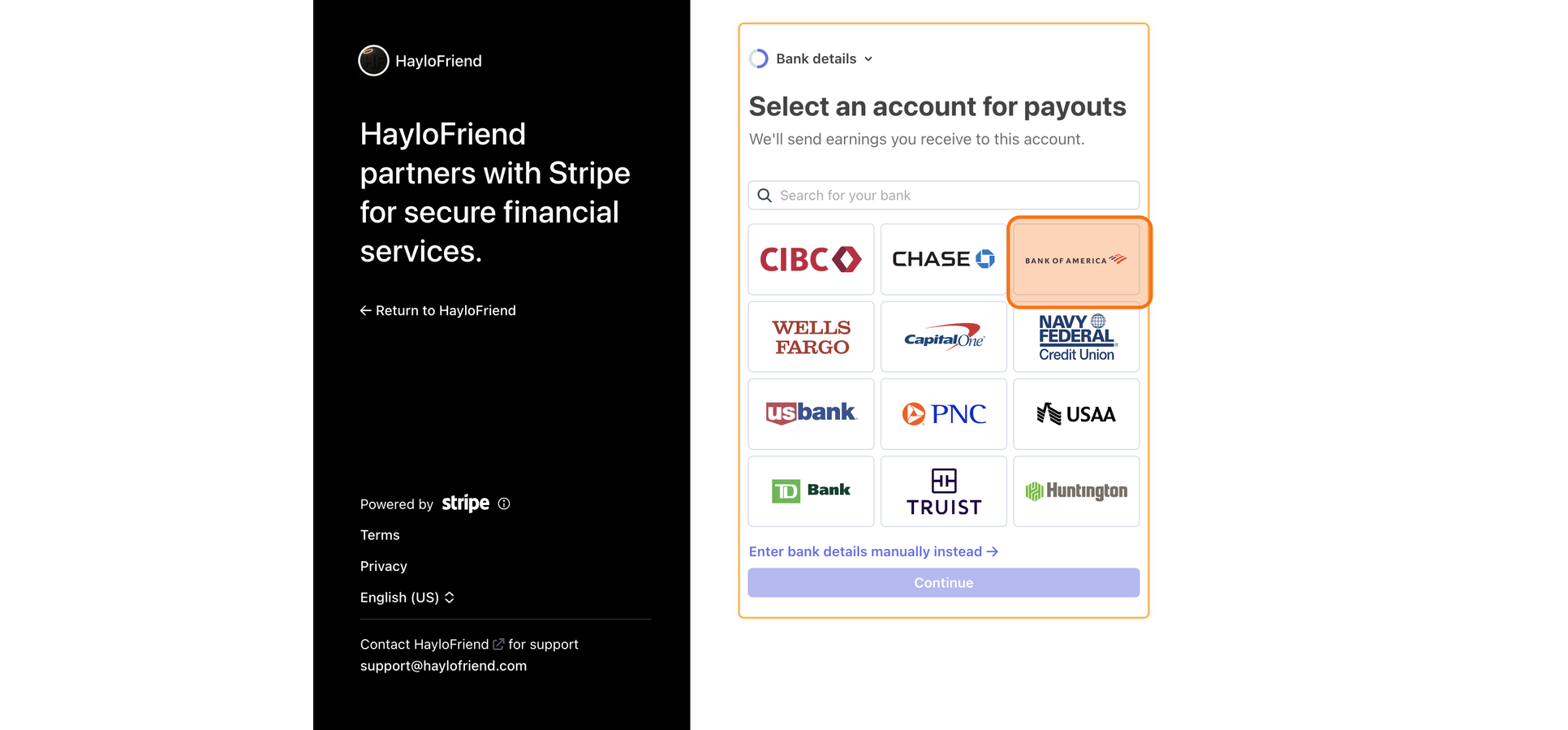
Connect a bank account
Stripe asks you to connect a bank so you can receive payouts — connect instantly or enter details manually. This example uses Bank of America; your bank's screens may differ slightly.
- 13
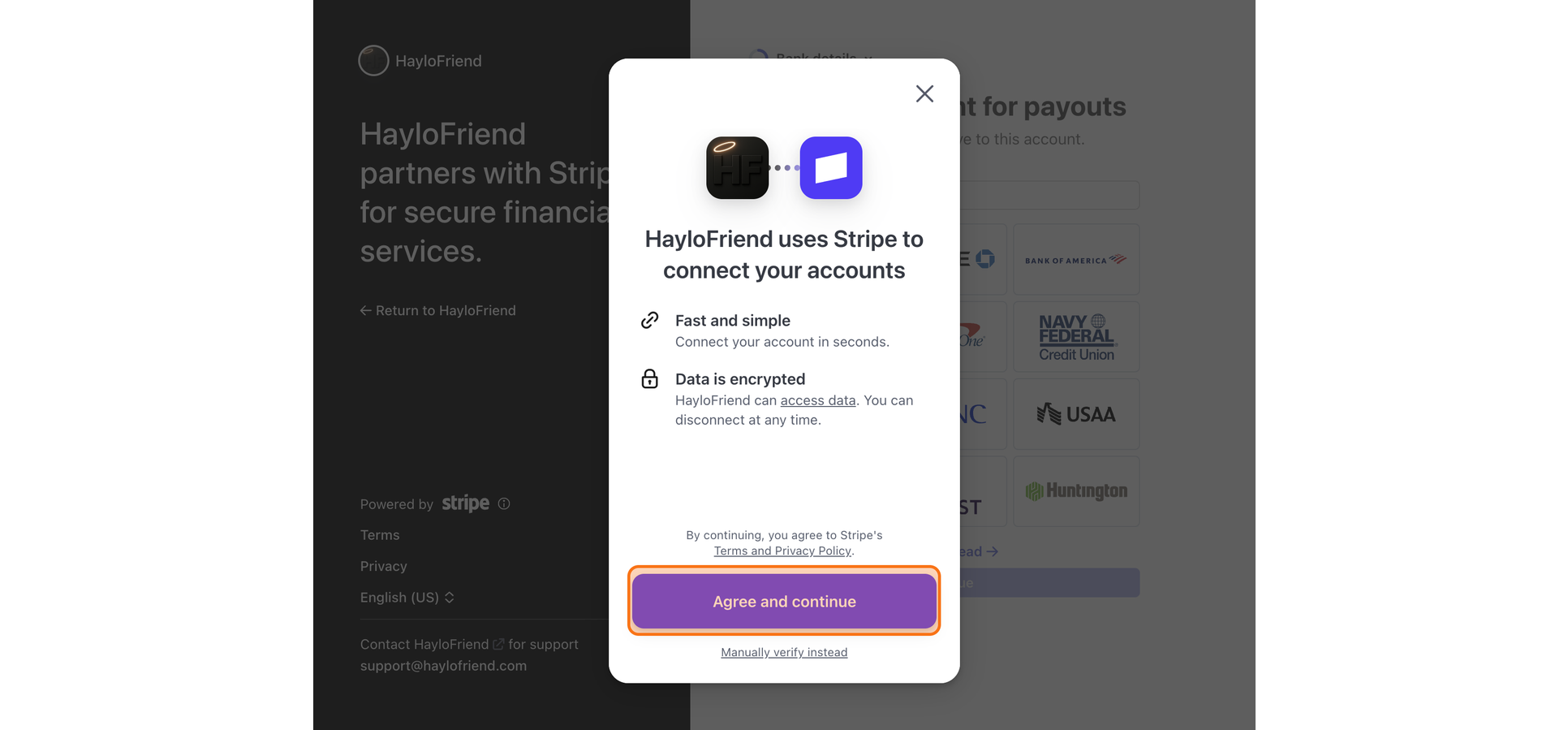
Review and agree
Haylo partners with Stripe to process payouts securely. Review Stripe's Terms of Service and Privacy Policy, then Agree and Continue.
- 14
Log in to your bank
Your bank opens in a secure window. Stripe uses Plaid — a trusted financial provider — to connect your account. Enter your online banking username and password, then Log In.
Stripe and Plaid handle this securely. Haylo never sees your banking username or password.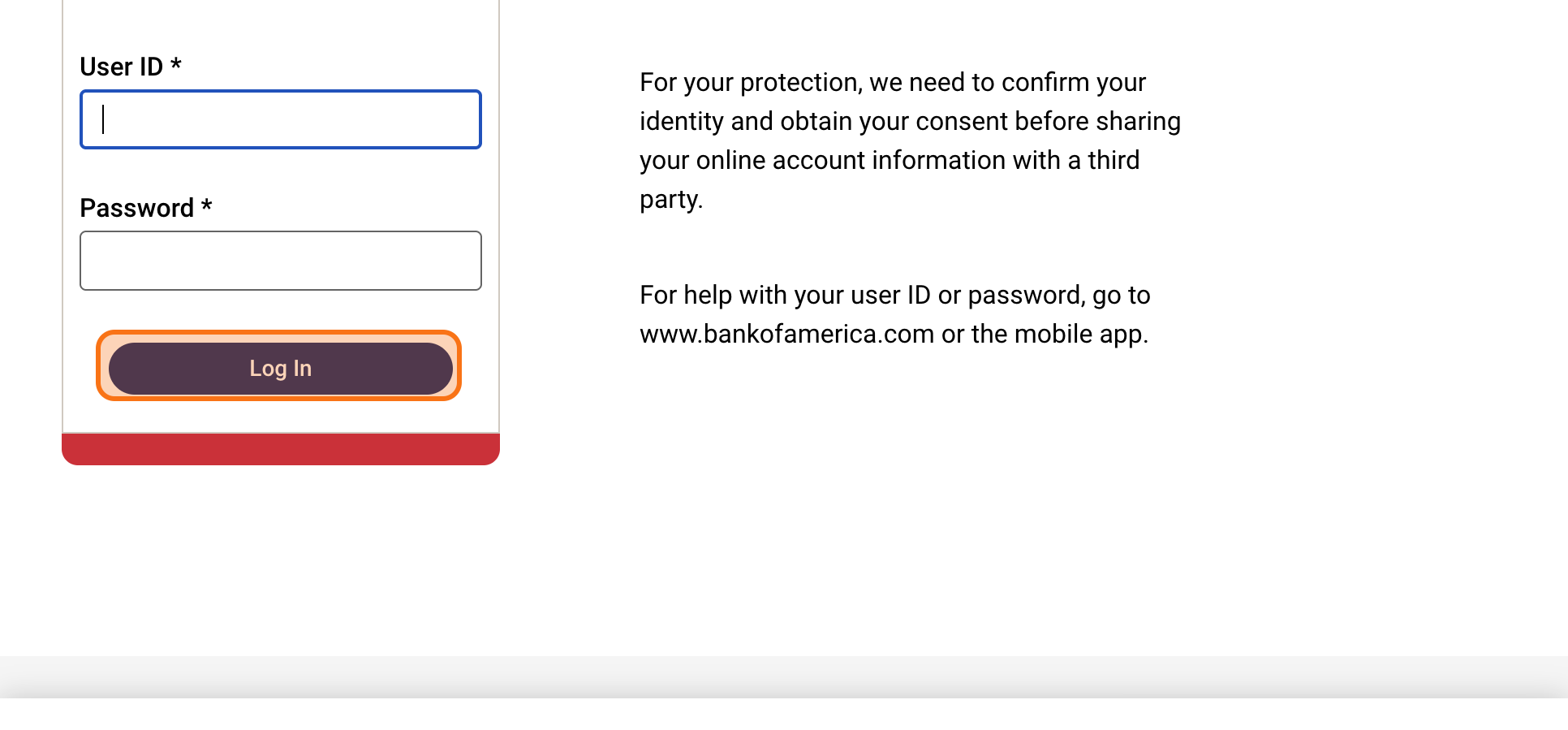
- 15
Get your bank's code
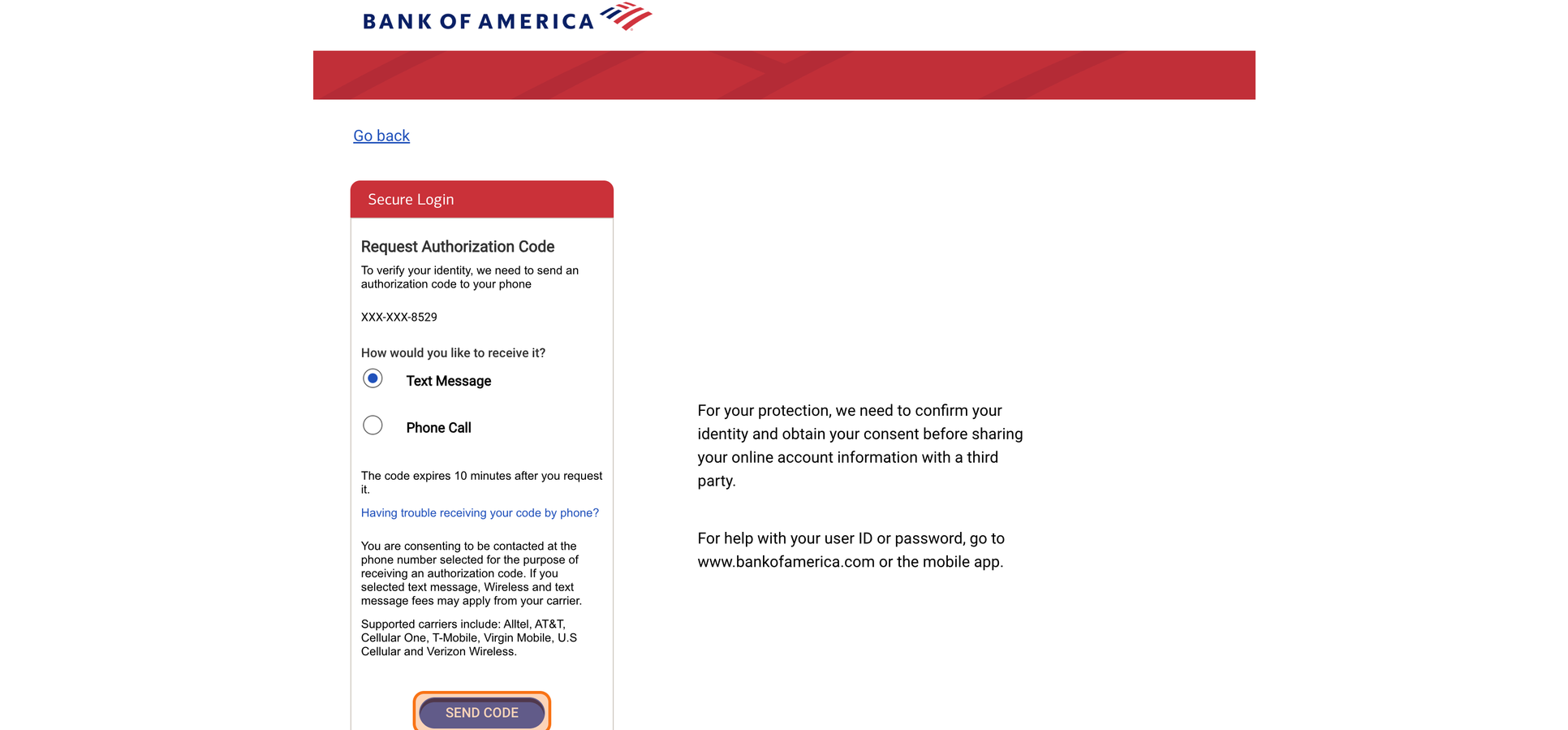
Your bank sends a verification code to confirm your identity. Choose text message or phone call, then Send Code.
- 16
Enter the code
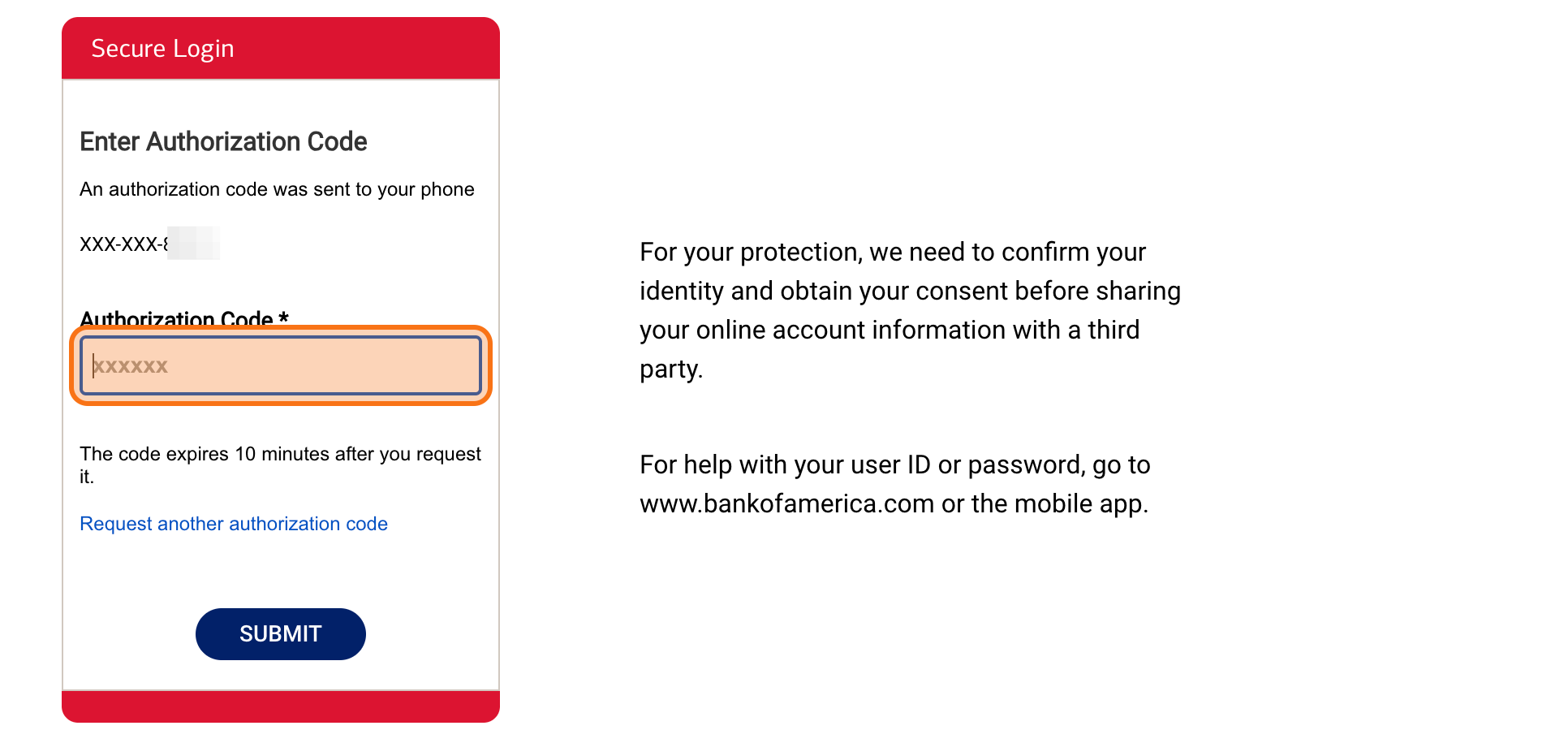
Enter the code and Submit.
- 17
Pick your payout account
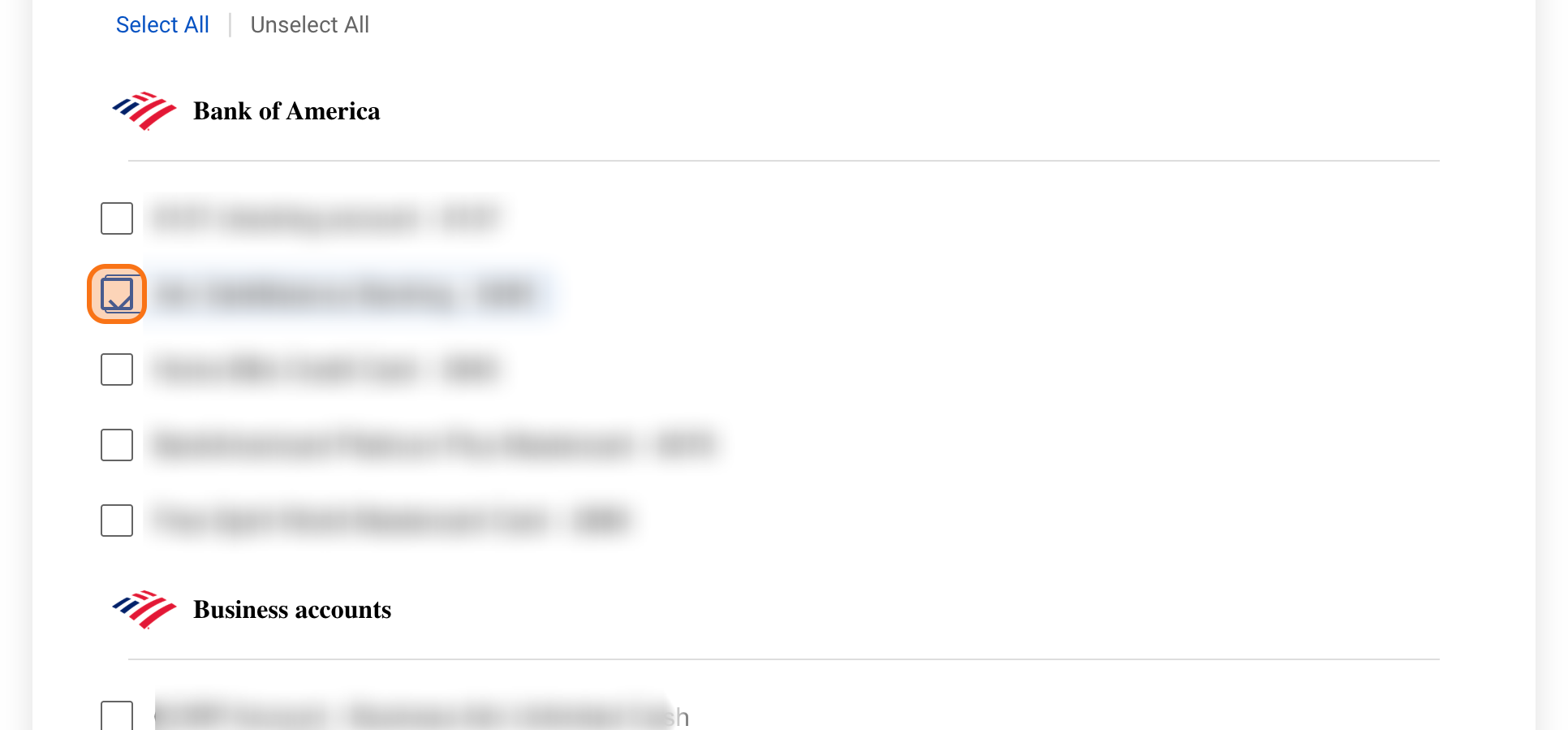
Select the bank account where you'd like to receive payouts. Stripe will use it for future Haylo deposits.
- 18
Continue
Click continue.
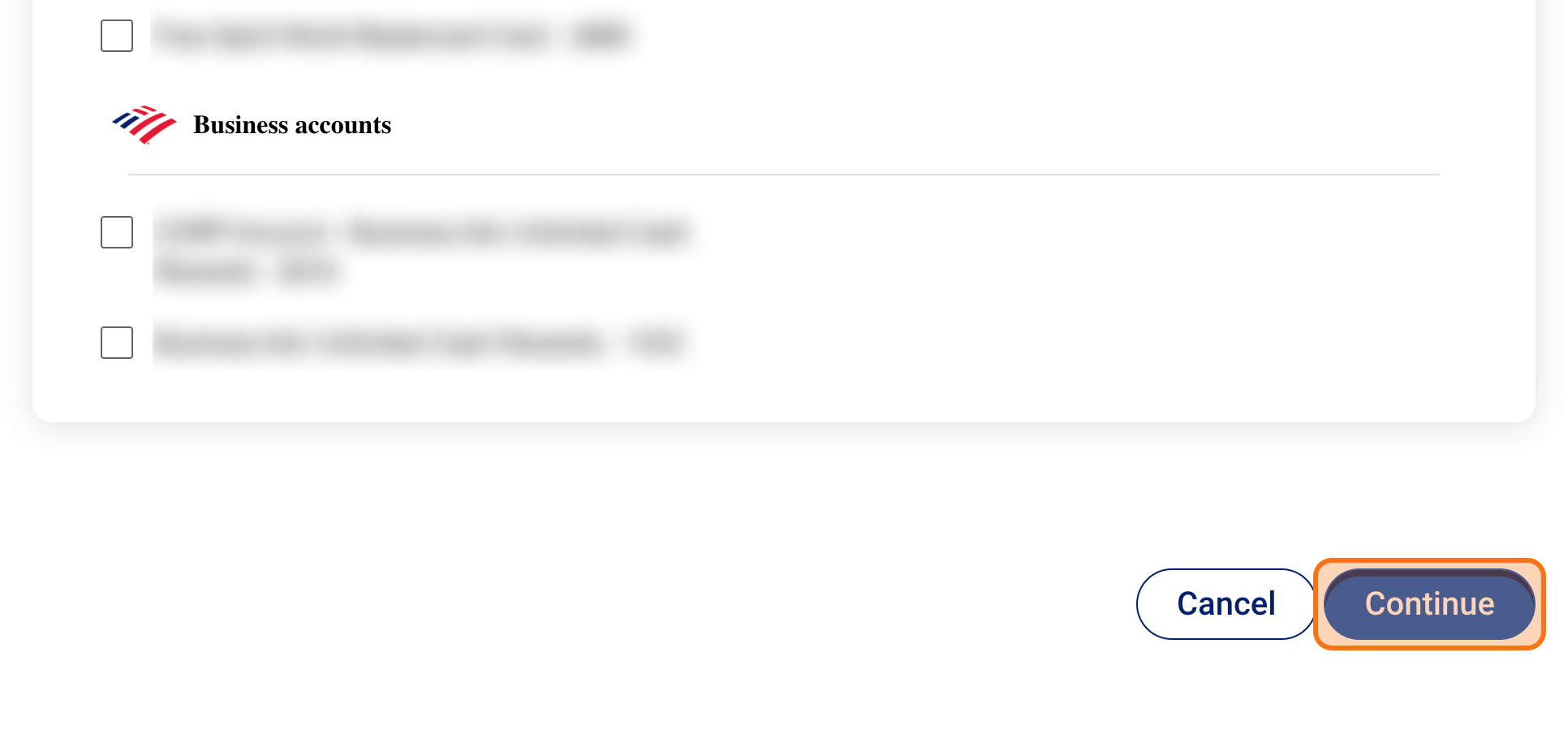
- 19
Allow secure sharing
This screen asks permission to securely share account information between your bank and Stripe so Stripe can verify your account and send payouts.
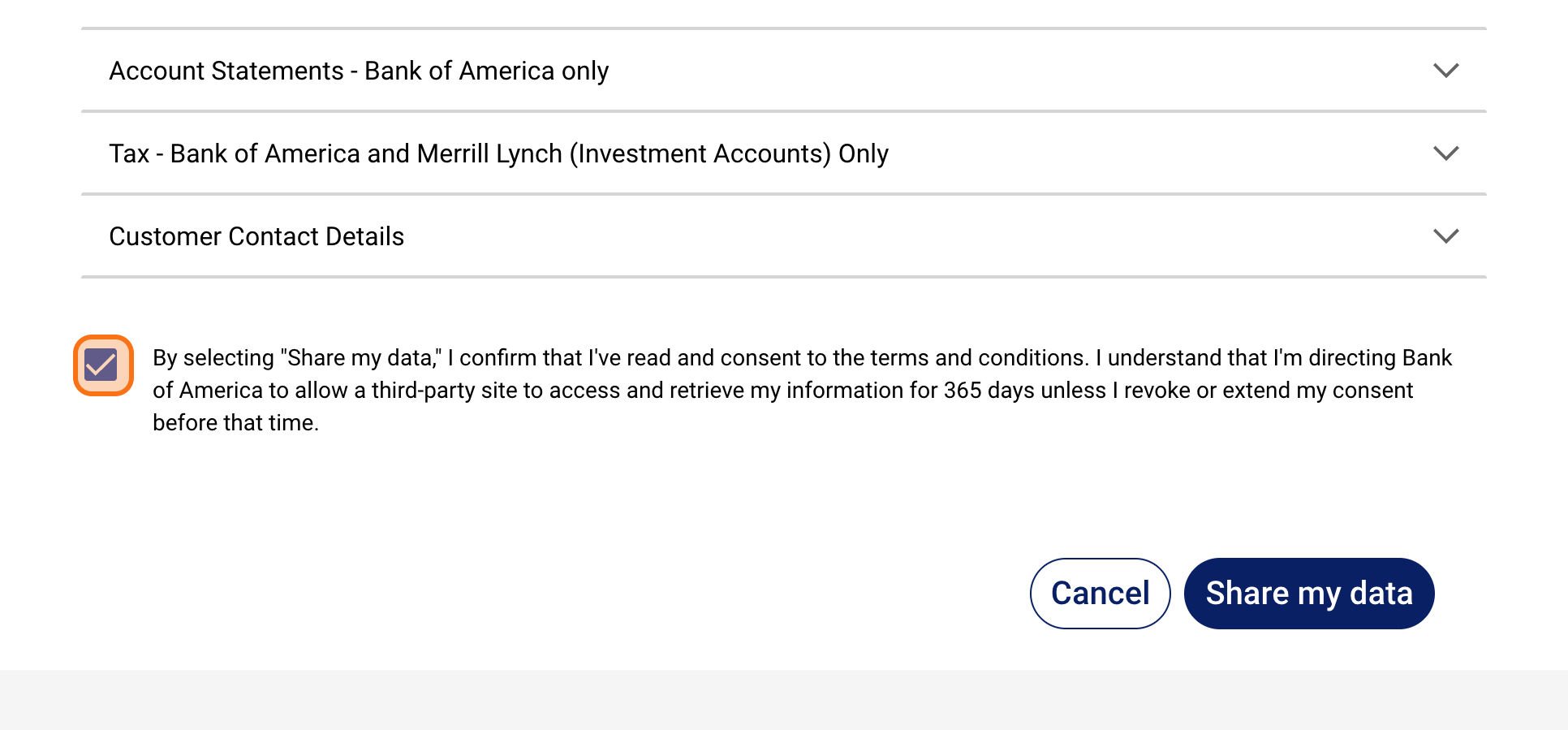
- 20
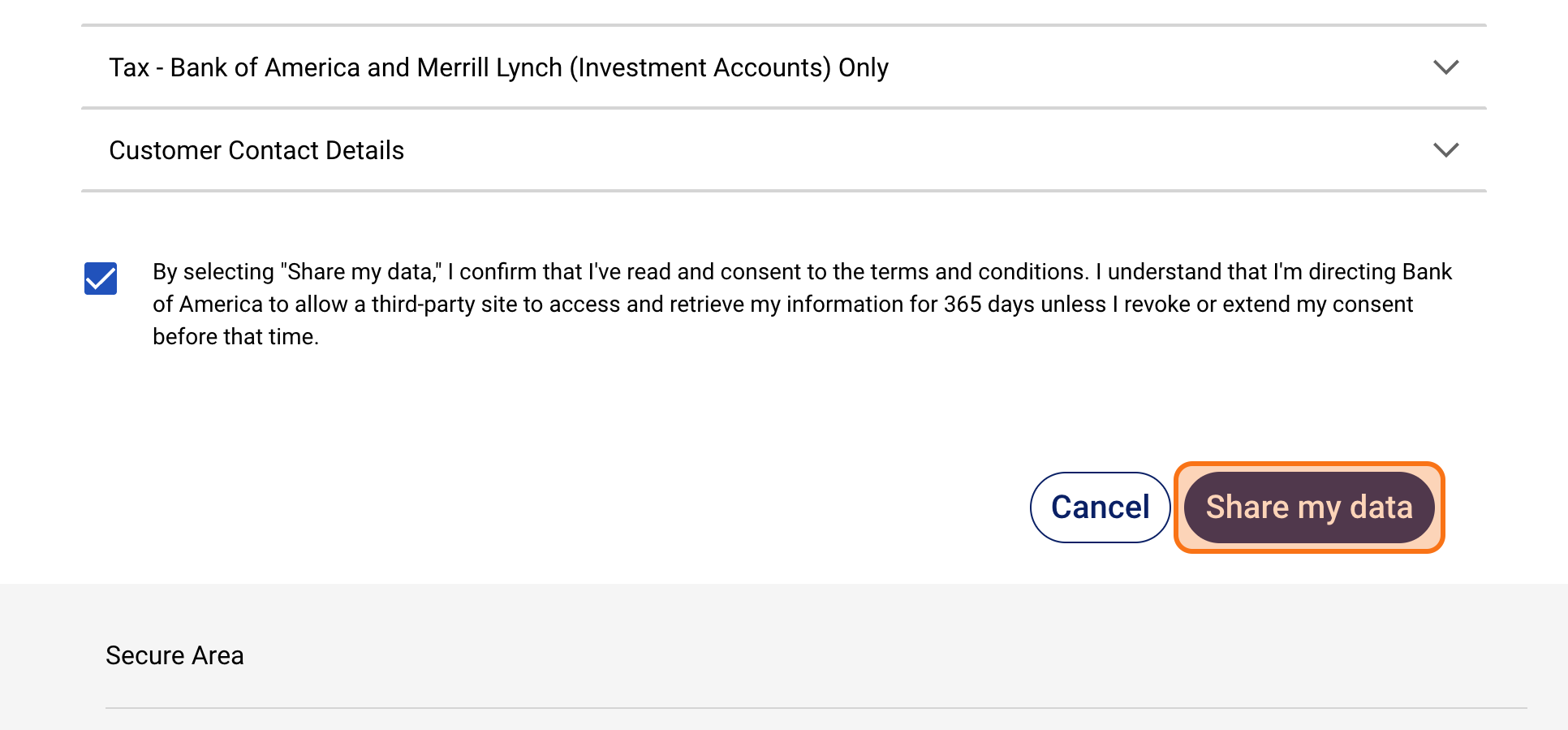
Share my data
Review the details, check the authorization box, and Share My Data.
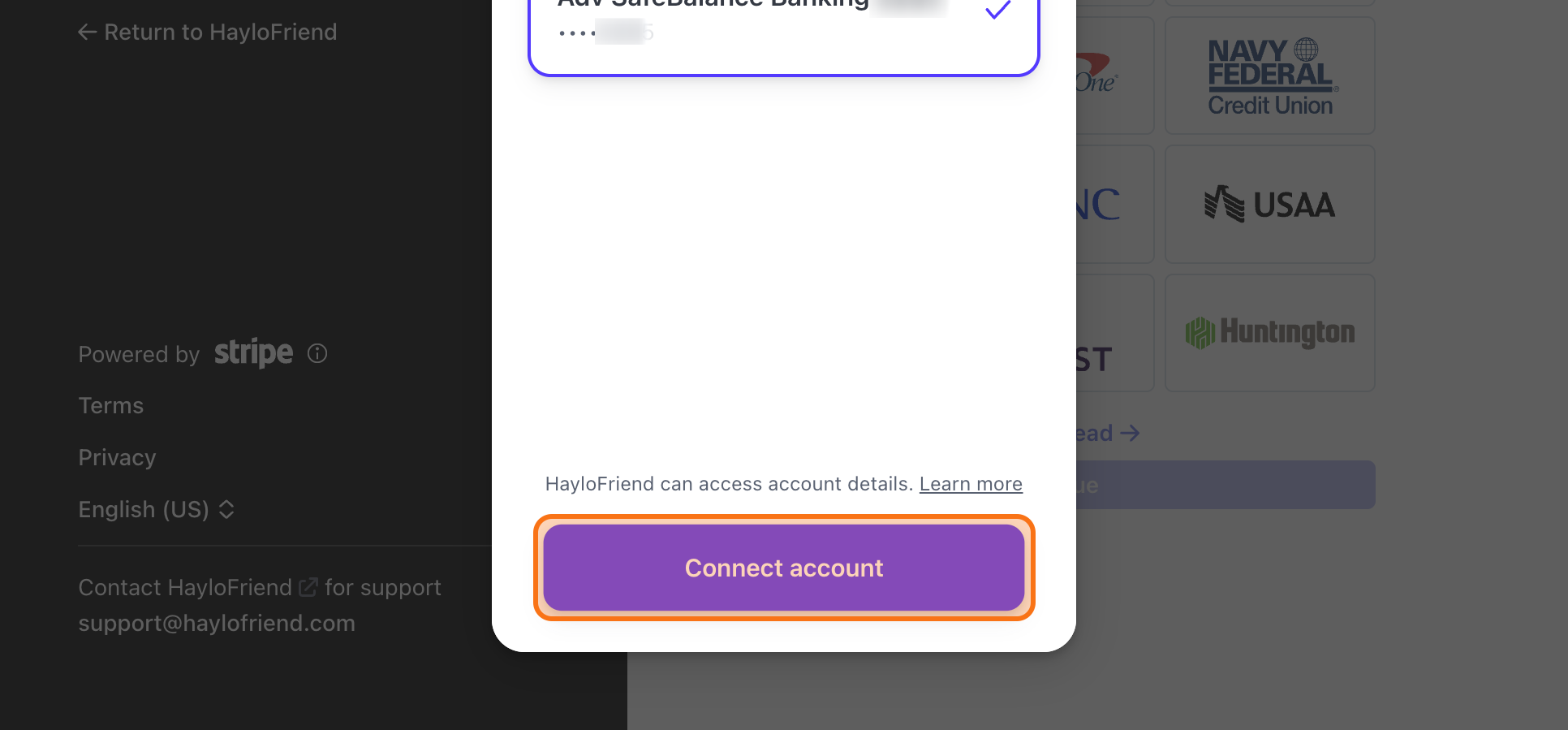
- 21
Click Connect account
Select the payout account and click Connect account. Once saved, your Stripe account is connected for future Haylo payouts.
- 22
Confirm with a code
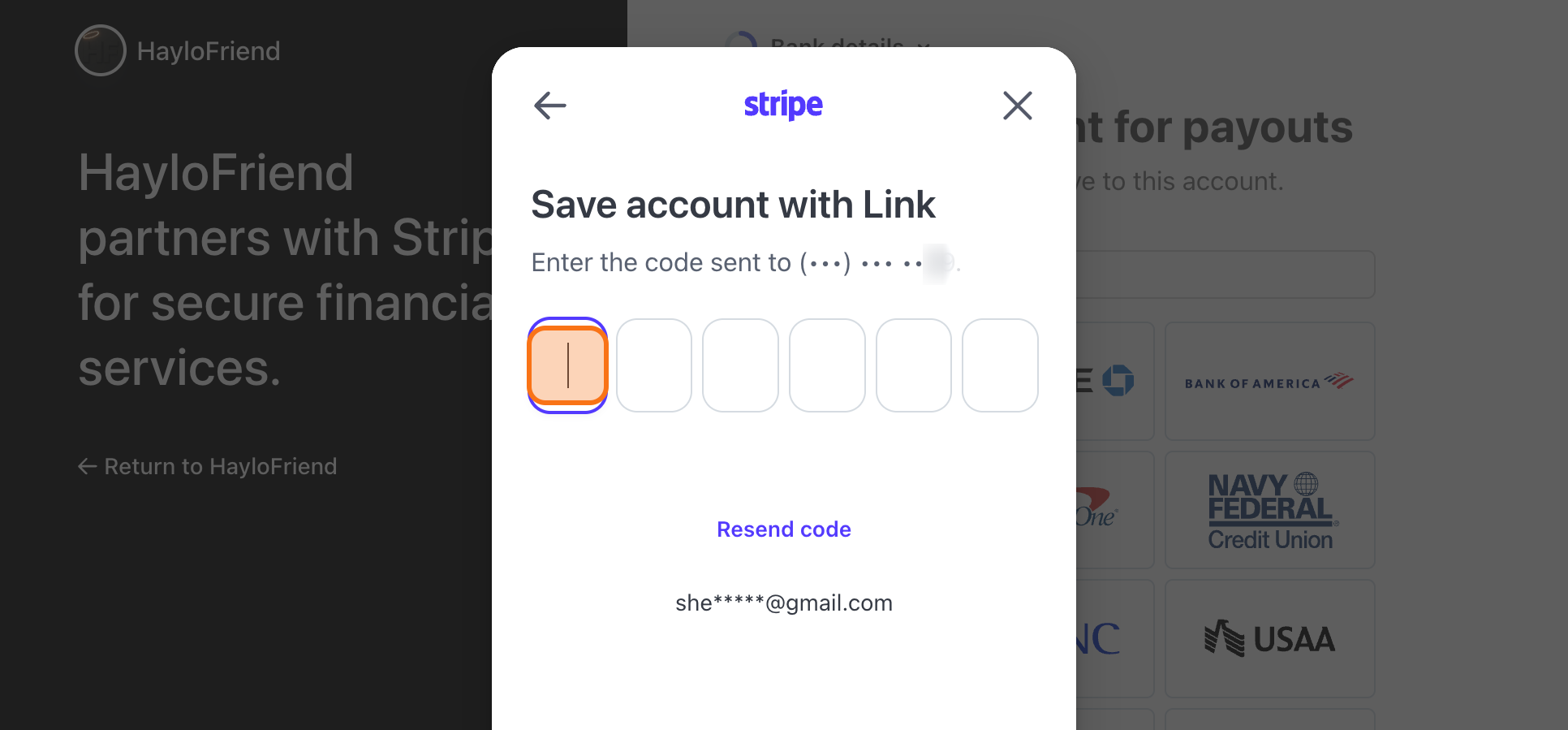
Your bank may send another six-digit code to confirm the connection. Enter it when prompted.
Steps
Part 4 — Finish and set your payout schedule
- 23
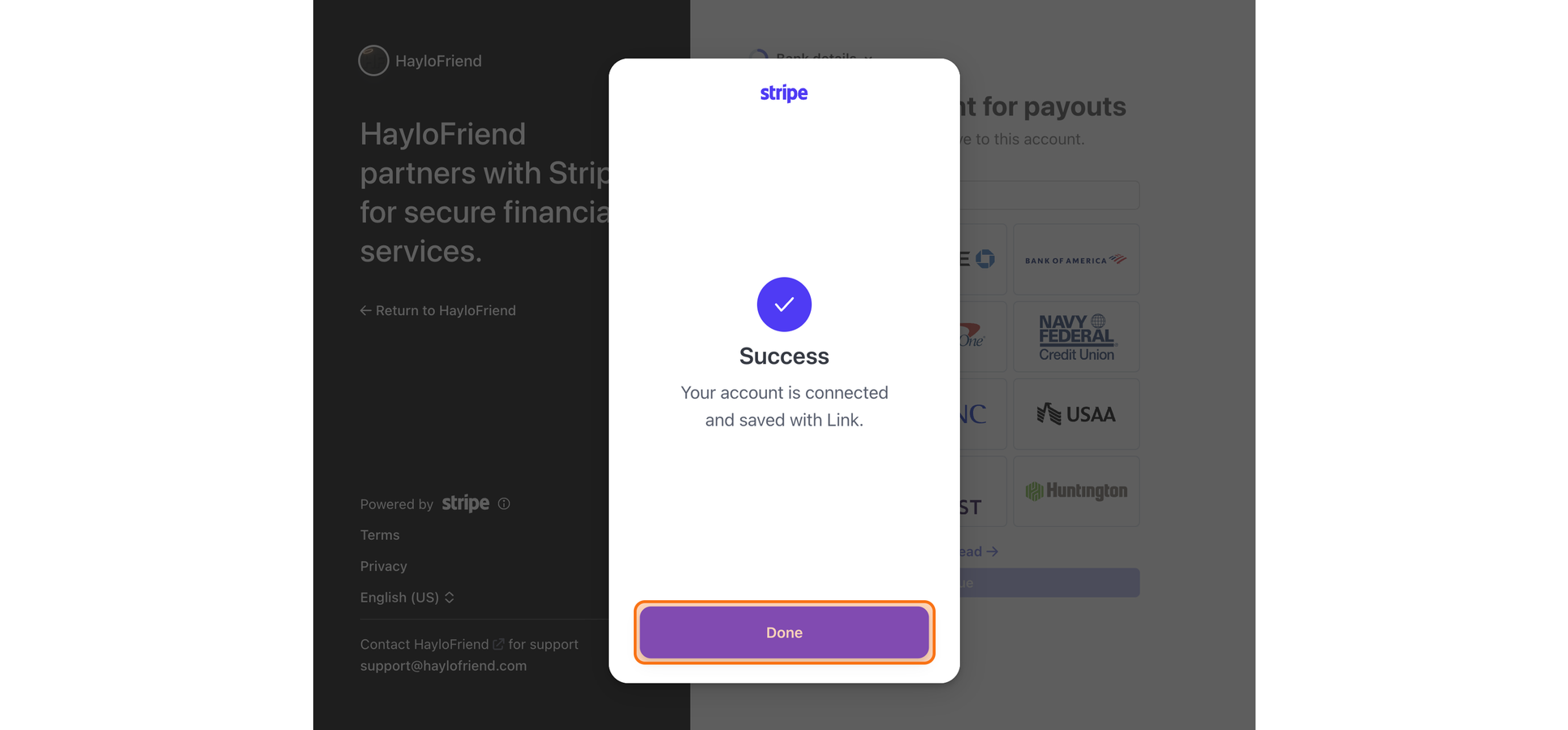
Click Done
You'll see a success page — click Done.
- 24
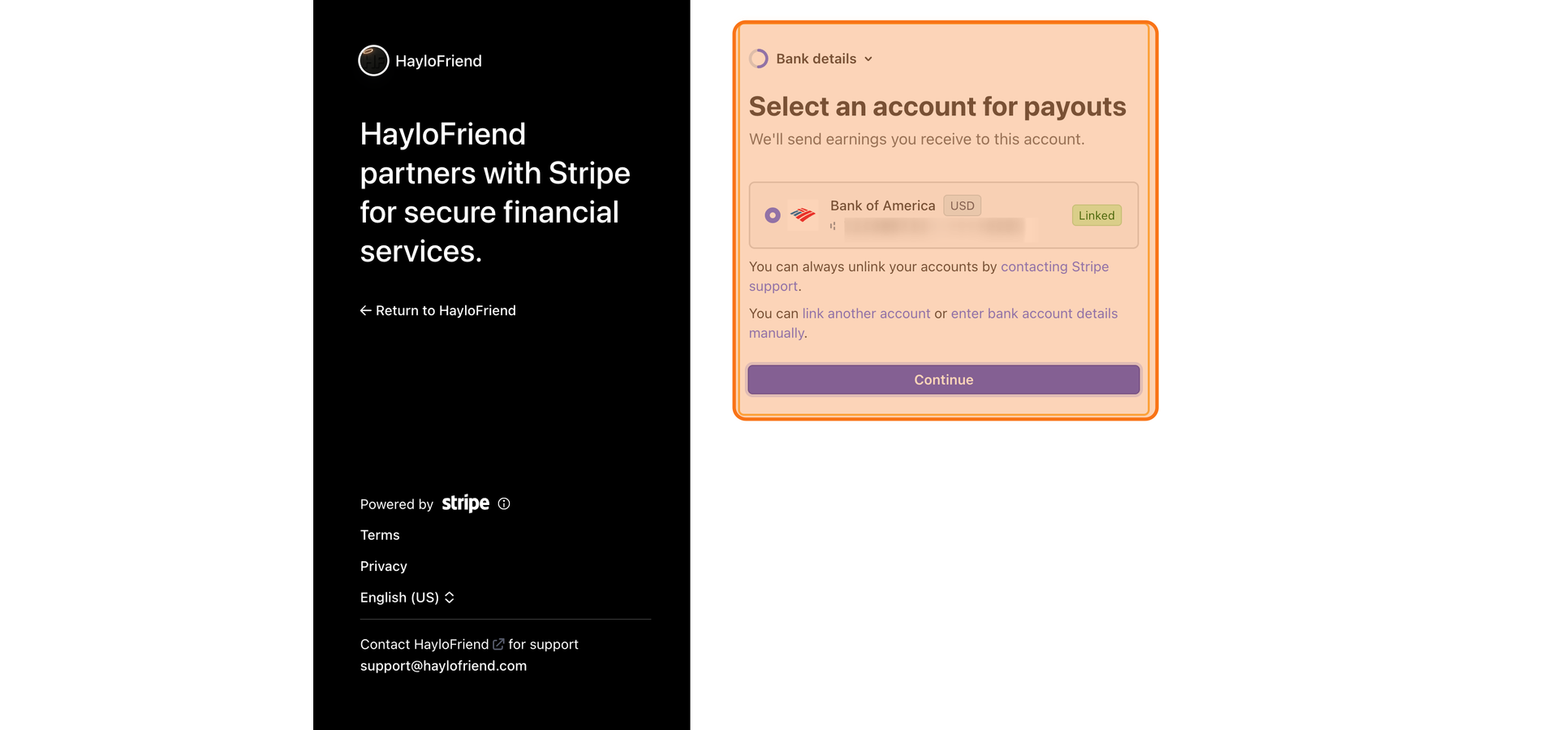
Review your bank details
Check your bank details. If they look right, Continue.
- 25
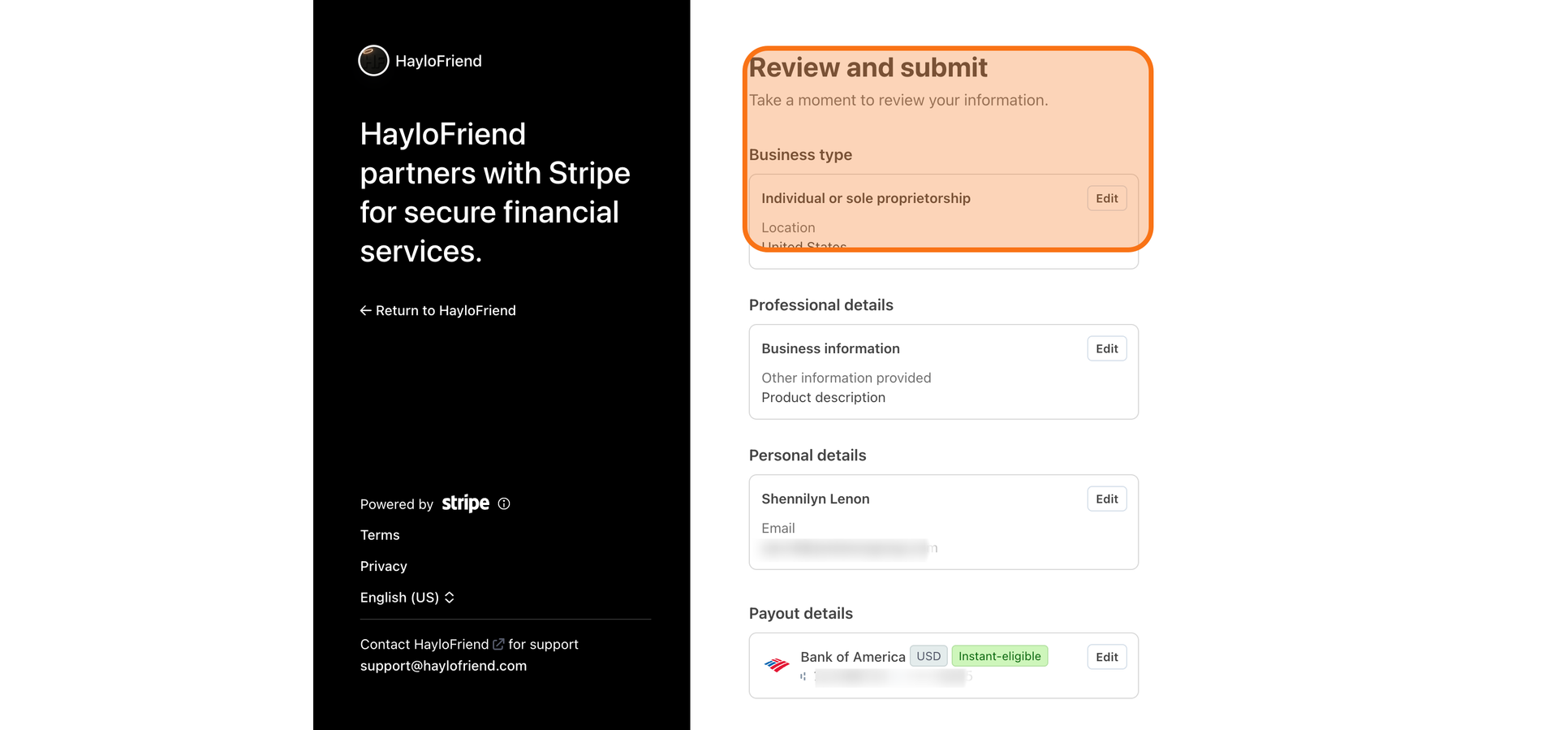
Double-check everything
Review your information top to bottom. If anything looks off, click Edit to fix it before continuing.
- 26
Agree and submit
You're all set — click Agree and Submit to complete Stripe setup. You'll return to Haylo to set your payout schedule.
We recommend automatic payouts every Friday so your funds land on a consistent weekly schedule.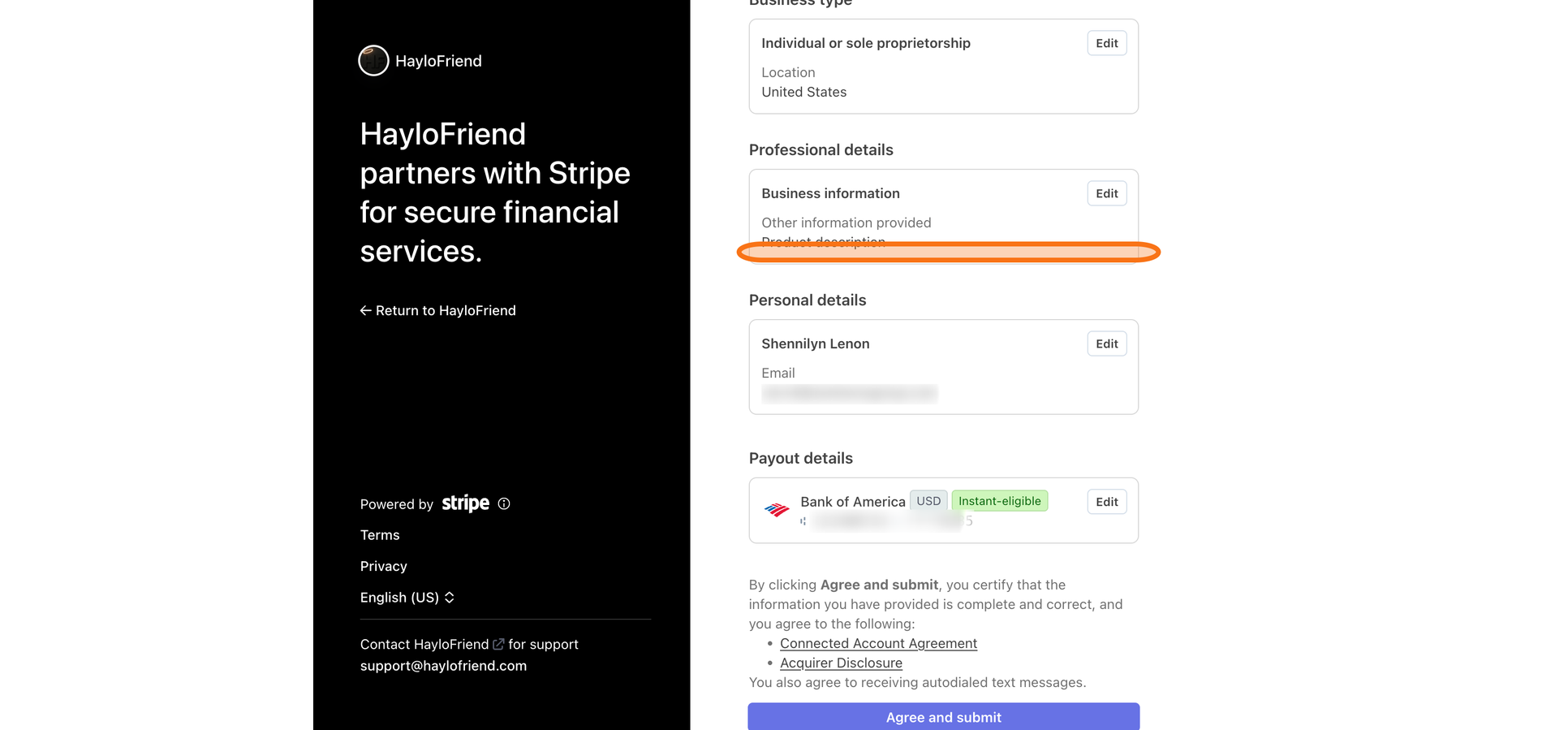
Done
After setup
When onboarding completes, your payout path is connected. Standard Friday batch payouts apply; instant payout may appear when you are eligible.
If something looks wrong, email support@haylofriend.com with the amount, approximate date and time, and what you expected to see.
More context lives in the Money & payouts section of the Help Center.